
Every school has students whose 504 plans live in a shared drive folder nobody opens, printed once in September and quietly out of date by November. The plan matters only if the adults around the student can find it, understand it, and keep it current — and that is a binder problem, not a paperwork problem.
Here is a 504 binder setup that takes an afternoon to build and minutes a week to maintain.
What a 504 Binder Is (and Is Not)
A 504 binder is a working organizer for the students in your class or caseload who have Section 504 plans. It holds the current plan for each student, the accommodations in a form teachers actually use, and the record of reviews and changes. It is not the official file — the signed originals stay wherever your school keeps them. The binder is the usable copy, built for daily reference.
If 504 plans are new territory, start with my comparison post, 504 vs IEP, then come back here for the setup.
The Sections, in Order
1. Student index. One list: every student with a 504 plan, their teacher or team, the plan date, and the review due date. This single page tells you the size of the job.
2. One section per student. Divider or digital tab per student, in the same order as the index. Consistency is what makes the binder fast.
3. The current plan. The full, current 504 plan for that student, filed at the front of their section. When a plan is replaced, the old one leaves the binder the same day — two versions in one binder is how accommodations get mixed up.
4. Accommodations at a glance. A one-page summary of the student's accommodations, written in classroom language: what the accommodation is, when it applies, and who provides it. This is the page teachers actually read, and the page to share (appropriately) with the student's other teachers and substitutes.
5. Teacher acknowledgment log. A simple record that each teacher who works with the student has received and read the accommodations. Date, name, signature or initials. When a question arises later, this page answers it.
6. Check-in and progress notes. Short dated notes: is the accommodation being used, is it helping, what needs adjusting. A few lines after each check-in keeps the annual review painless.
7. Meeting and review pages. Notes from 504 meetings, parent communications, and the annual review record, per student.
The Update Habits That Keep It Alive
A binder fails by going stale, not by being disorganized on day one. Three habits prevent it:
- Replace, do not stack. New plan or amended page goes in; the old version comes out immediately.
- One monthly ten-minute pass. Check the index: reviews coming due, check-in notes missing, new students to add.
- Review-date flags. Put each plan's review date on the index page and on your calendar the day the plan is filed, not the week it expires.
Who Holds the Binder
In a classroom, the binder usually belongs to the teacher. In a caseload model, it belongs to the counselor or coordinator. Either way, it contains confidential student information: keep it in a locked drawer or on a password-protected tablet, and never leave it open on a shared desk.
Paper or Digital
Printed binders suit a single classroom. A hyperlinked PDF on a tablet suits coordinators who move between classrooms and need the index to jump straight to a student. Both use the same sections — choose for your day, not for the trend.
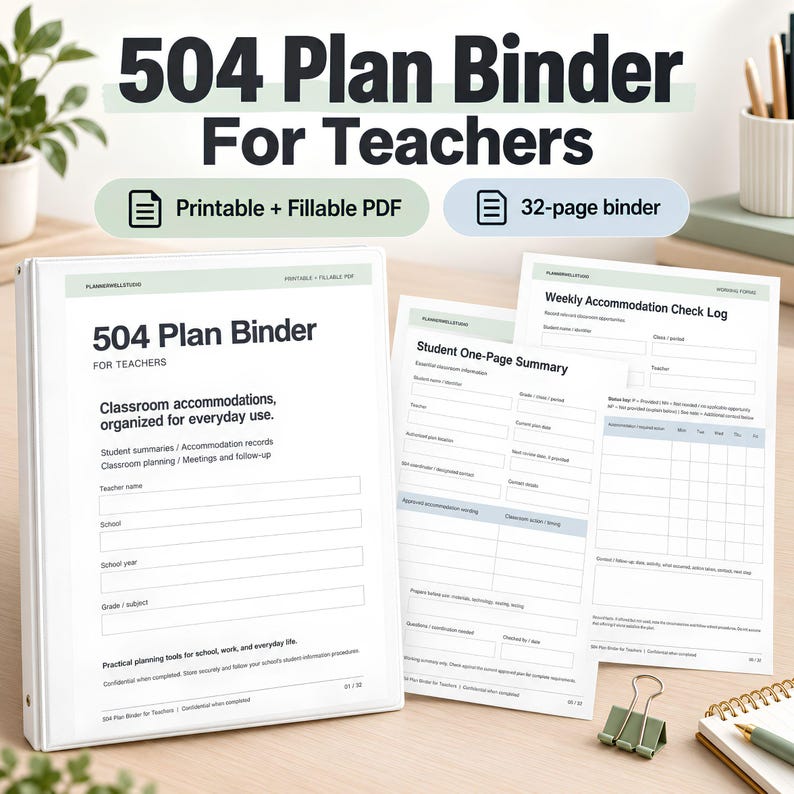
My 504 Plan Binder includes all seven sections above — index, per-student plan pages, accommodations-at-a-glance sheets, acknowledgment logs, check-in notes, and review pages — in printable US Letter and A4 plus a hyperlinked tablet version.
Your Afternoon Checklist
1. List every student with a 504 plan (the index).
2. Print or import the current plan for each.
3. Write the accommodations-at-a-glance page for each student.
4. Add acknowledgment logs and check-in pages.
5. Put every review date on your calendar.
Five steps, one afternoon, and the next time anyone asks about a student's accommodations, the answer is one page away.
Read next
504 vs IEP: What General Education Teachers Actually Need to Know



0 Comments